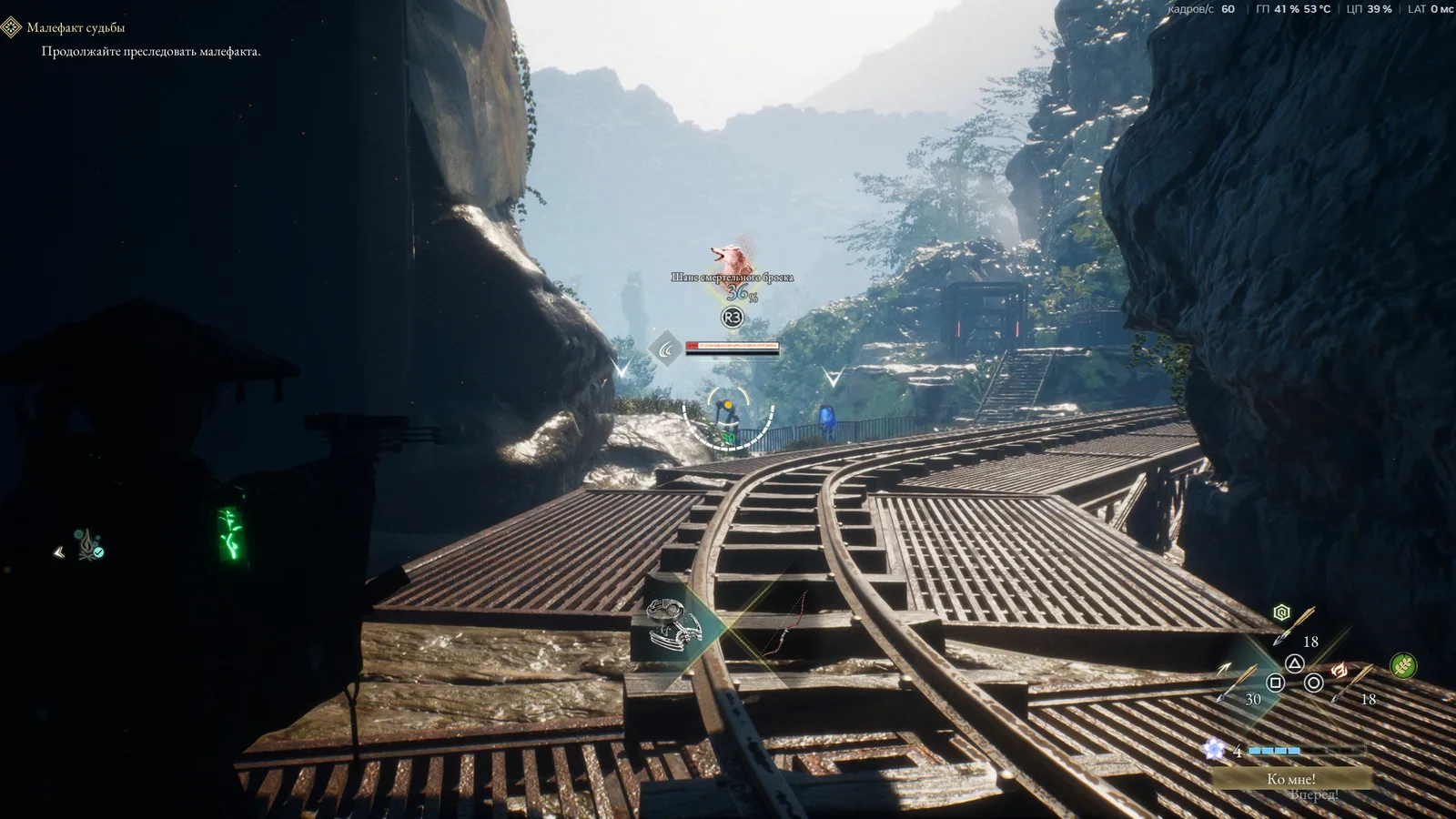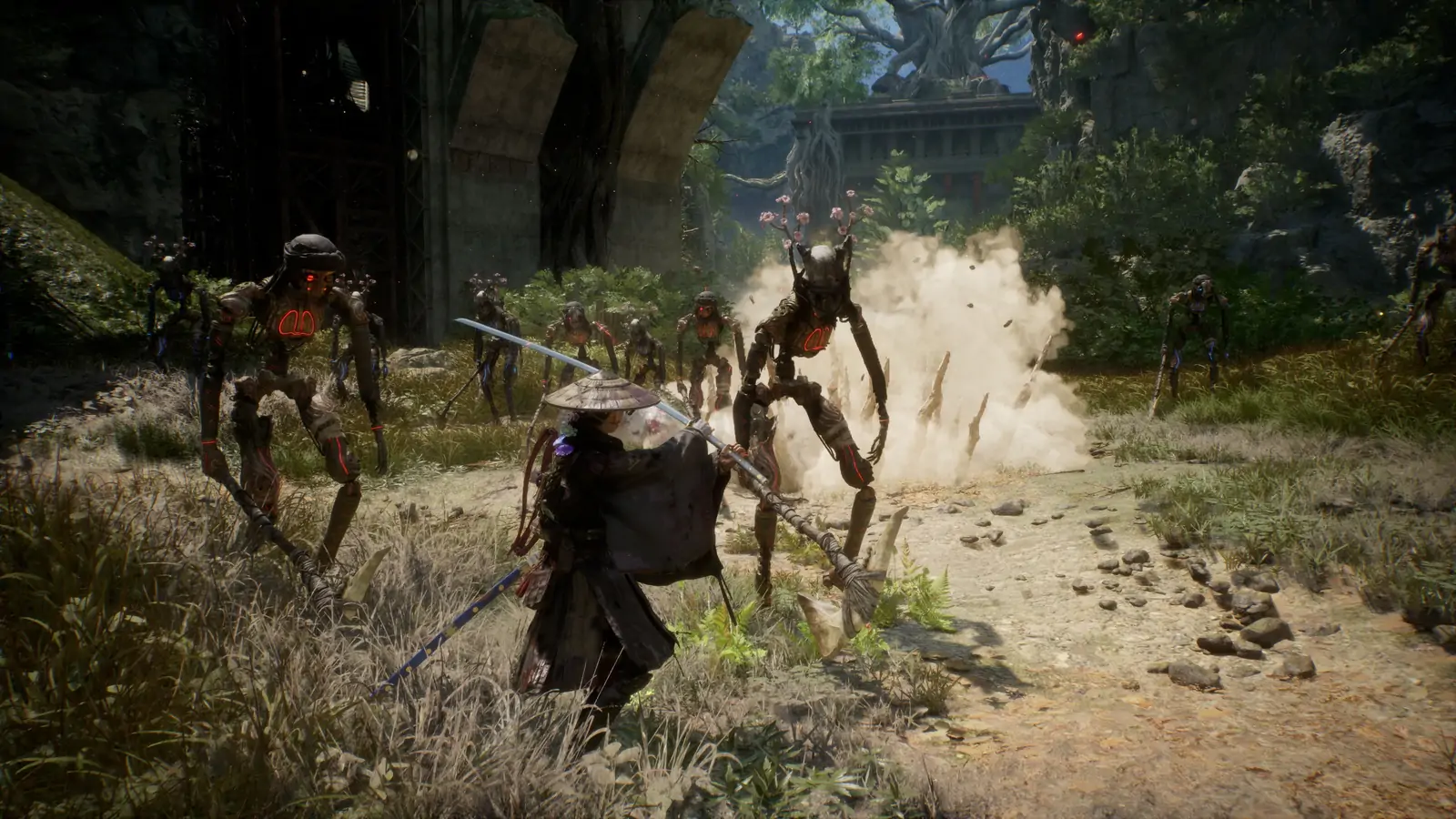
Beast of Reincarnation PC Performance & Settings: The Fixes Players Actually Found
Source-backed PC fixes for Beast of Reincarnation: what v1.0.7 to v1.0.10 solved, and which problems are still player workarounds.
Beast of Reincarnation shipped on August 4, 2026 at version 1.0.6, and the launch-week Steam forums focused heavily on the PC port. Four official patches have landed since, and they resolved the three biggest complaints on this page: film grain and chromatic aberration now have menu toggles, ultrawide monitors are supported, and frame generation is a built-in option. Rechecked September 3, 2026 against the current build, v1.0.10.
| Launch-week complaint | Status now |
|---|---|
| Film grain / chromatic aberration cannot be turned off | Fixed in v1.0.10 — separate toggles, plus one for cutscenes |
| No ultrawide support | Fixed in v1.0.9 |
| No frame generation | Added in v1.0.9 (DLSS/FSR) |
| Outdated upscaling models | DLSS 4/4.5 and FSR 4 added in v1.0.8 |
| Upscaling settings reset on restart | Fixed in v1.0.7 |
| Missing 4K resolution option | Still a player workaround |
| Intel 13th/14th-gen launch crash | Still a player workaround |
| Steam Deck not Verified | Still not Verified; developers said they are resubmitting |
The version-by-version record is in the patch notes index. Everything else below comes from players discussing the shipped game in the official Steam forums unless it is explicitly attributed to an official patch. Where a fix is one player’s report rather than something confirmed by the developer, that is stated. Treat the store page and pinned developer threads as the live source of truth.
Quick triage: which problem do you have?
| Symptom | Jump to |
|---|---|
| Game looks soft/noisy even at high settings | Film grain and upscaling |
| No 4K option in the menu | The missing 4K option |
| Low FPS but GPU and CPU sit at 50–60% | Low GPU usage fix |
| Game won’t launch (Intel 13th/14th-gen) | Intel launch crash |
| Playing on Steam Deck | Steam Deck |
| Ultrawide (21:9 / 32:9) | Ultrawide |
Film grain and upscaling: use the menu now
Two complaints dominated every performance thread, and both have official answers today. Update the game before doing anything else in this section.
1. Film grain and chromatic aberration. v1.0.10, published August 31, 2026, added in-menu toggles for both, plus a separate toggle for post-processing in cutscenes. That is the correct fix and it replaces every workaround below. Details on the v1.0.10 notes page.
The workarounds are kept here for one reason: they still apply if you are running an older build, and the engine.ini route survives as a way to disable grain without touching anything else.
- Set Post Processing to Low. Players reported this disabled both film grain and chromatic aberration in one move. The catch, per one commenter, is that Low “will disable other settings as well,” so you lose effects you might want to keep. On a current build the dedicated toggles are strictly better than this.
- Edit an
engine.inifile to kill only grain and aberration. Player “Seibzehn” posted the exact file — create it at:
C:\Users\<YOURNAME>\AppData\Local\BeastOfReincarnation\Saved\engine.iniand paste in:
[SystemSettings]
; Disable Film Grain
r.FilmGrain=0
r.Tonemapper.GrainQuantization=0

; Disable Chromatic Aberration
r.SceneColorFringeQuality=0
These are standard Unreal Engine console variables, which is consistent with this being a UE5 title. Back the file up — a game update can overwrite or ignore custom engine.ini settings. On PS5 neither route is available, and the console status is covered on the PS5 film grain page.
2. Upscaling settings resetting after a restart. This was a repeated launch-week player report, but it is no longer accurate to say there is no confirmed fix. The official v1.0.7 notes say: “Fixed a bug causing upscaling settings to reset upon restarting the game.” After Steam updates the game, set your preferred option once, restart, and check the setting before applying other workarounds. If it still resets, record the version you see and report that reproducible case through the official route.
One related regression to know about: v1.0.8 broke upscaling on the Microsoft Store / Xbox PC version, and v1.0.9 fixed it. If your upscaling options vanished in mid-August on Game Pass, that was the cause.
Getting a sharper image on Nvidia (DLSS presets)
The game ships with an older DLSS build (players identified 3.7) and, by default, uses a preset that several people found noisy. Two things help, both community-reported:
- Force a newer DLSS preset. Players say the default is Preset E, and that forcing Preset K “resolves the noise in this game” better than the alternatives; Preset L and M are also suggested for RTX 40/50-series cards. You can do this through the Nvidia App (which can force the latest DLSS model without any file swapping) or DLSS Swapper.
- DLSS Swapper / newer DLL. Some players swap in DLSS 310.7 for cleaner reconstruction and less shimmering. Note two caveats from the threads: one player got crashes after swapping to 310.6/310.7, and the game’s tendency to fall back to FSR can undo the swap anyway. Your mileage varies — if it crashes, roll back.
Both of the upscaling features promised in the v1.0.7 post have shipped, and native frame generation has too. DLSS 4/4.5 (L/M) and FSR 4 arrived in v1.0.8 (August 15, 2026), and frame generation (DLSS/FSR) arrived in v1.0.9 (August 24, 2026) as a settings-menu option. So the DLSS-swapping advice above is now a fallback for a specific preference, not the only route to a modern model — check the menu first. Third-party frame-generation tools are no longer necessary and were never a publisher-supported replacement; the mod support status guide explains why this site does not treat unverified tools as universal fixes.
The missing 4K option
A recurring, genuinely confusing one: players on 4090 / 4070 Ti cards open the display settings and the resolution list stops at 1440p — no 4K entry at all, while other players on 5090s and 4K TVs see 4K fine. Two workarounds surfaced, reported by different players independently:
- Set your Windows desktop to 4K before launching the game. The game appears to populate its resolution list from the current desktop resolution.
- Switch to Windowed mode, pick 4K, then switch back to Borderless. One 4090 user (player “kame2”) confirmed the 4K option appeared only after toggling to Windowed, and that
GameUserSettings.iniwas then correctly set to 4K.
One honest caveat from the same players: even at confirmed 4K, the image can look “a bit blurry,” which they attribute to a low internal texture/render resolution. Clearing film grain (above) helps more than chasing the resolution number.
Low FPS with GPU and CPU both under 60%
A distinctive symptom several players hit: 40–50 FPS while neither the GPU nor CPU is maxed out (both sitting around 50–60%). That pattern points to a power/clock issue rather than a raw hardware limit. The fix that worked for player “Chang Chang”:
In Nvidia Profile Inspector, change Power Management Mode from Optimal Performance to Prefer Maximum Performance. Also disabling the CPU’s E-cores for the game.
Their result: 40–50 FPS jumped to 110–120 FPS at max settings with ray tracing on. They noted they weren’t sure which of the two changes did it, so try the Power Management toggle first (it’s the less invasive one).
Separately, this game is CPU-heavy. One player with a Ryzen 7 5700X + 4060 Ti reported all cores pinned near 100% “like when games are pre-compiling shaders,” and struggled to stay GPU-bound at 1440p. Reports on shaders conflict — some players see no pre-compilation at startup, others say it compiles at launch and during cutscenes — but the consensus is that a weak CPU will bottleneck you more than the GPU will, and a fast NVMe SSD noticeably reduces stutter.
Ray tracing does very little
Several players report no visible difference with ray tracing on or off, in either image quality or performance. If you’re chasing frames, turning RT off costs you little, and one player running a 5070 Ti explicitly plays with RT off for a smooth experience. Treat RT as optional at launch.
The game refuses to launch (Intel 13th/14th-gen)
If the game won’t start and throws an error — some players saw one pointing to an Oodle/Intel page, others a Visual C++ runtime prompt — the fix reported by 13th/14th-gen Intel owners is:
- Update your motherboard BIOS. Player “Blaze” had the game refuse to launch on a 13th-gen chip until updating the BIOS, after which it ran. This ties into the well-documented 2024 Intel 13th/14th-gen instability issue; a UE5 “out of memory” error is a known symptom.
- Also make sure your Visual C++ redistributables (x64 and x86) are current — one player hit a missing-runtime prompt at launch.
Most Intel owners (12th, 13th, 14th-gen) in the thread reported no issues at all, so this is specific to affected chips, not universal.
Steam Deck: not Verified yet
This one has a first-party answer. In the Steam Deck thread, a poster identifying as being on the team (“Sam”) wrote:
“It is not currently Verified and the experience is not ideal right now. We’re hoping to address this and resubmit for a second Deck review soon… we’re aware of the issues and working to fix them.”
Player reports are mixed but usable:
- One reviewer’s footage showed 20–32 FPS on lowest settings with FSR 3 Balanced, dipping into single digits on load.
- A Deck OLED owner got a stable ~30 FPS on all-Low, HDR off, using Proton Experimental and called it fine.
- On Linux, players say GE-Proton (Glorious Eggroll) runs it noticeably smoother than stock Proton.
- A Legion Go S (Z1 Extreme, 32 GB) user reported ~60 FPS on Medium with light tweaking — not a Deck, but a data point for handhelds with more headroom.
Playable on a Deck today if you accept 30 FPS and low settings; wait for the promised re-submission if you want it polished.
Ultrawide (21:9 / 32:9)
This is fixed officially. v1.0.9, published August 24, 2026, added ultrawide monitor support, and the note says most ultrawide and super ultrawide monitors should now work, asking players to report any that still do not. That wording is the developer’s, so treat it as broad support rather than a guarantee for every aspect ratio.
Before that patch there was no native support, and a community project covering camera distance, FOV and ultrawide was the only route — its author had also published inconsistent version labels across Steam and GitHub. On a current build you should not need it. See the mod support status guide for the source boundary, and do not assume a third-party tool still works after a patch.
What the developers have said
Two useful signals from the official threads, both worth weighting more than random comments:
- On performance generally, the team acknowledged the lack of frame generation and, per a player relaying a dev statement, said they “are on it.” They delivered: frame generation (DLSS/FSR) shipped in v1.0.9.
- On Steam Deck, the team confirmed they’re working toward Verified status and a re-submission (quoted above).
Beyond that, route bugs and requests through the pinned official threads in the Steam forums — that’s where Fictions and Game Freak asked players to consolidate reports so they reach the team together.
What we haven’t verified
We have not personally benchmarked the game. Every fix above is attributed to the player who reported it; the engine.ini values are standard UE5 cvars but we have not tested that this exact file survives future patches. Hardware behaviour varies wildly — the same 4K-menu bug hits some high-end cards and not others — so treat these as starting points, not guarantees. For the settings that are officially documented, see the PC requirements page; for how the game actually plays, see the beginner’s guide and is it a Soulslike?.
Sources
- Developer, first-party. Official v1.0.7 patch notes - upscaling-reset and V-Sync fixes, plus the future DLSS and FSR wording. Checked August 10, 2026. Team member “Sam” in the Steam Deck discussion thread - not Verified, working on it, resubmitting. Official launch announcement - version 1.0.6, feedback via pinned threads.
- Player fixes. Beast of Reincarnation General Discussions (August 3-4, 2026): the
engine.inifilm-grain fix (“Seibzehn”), launch-week DLSS-reset reports, DLSS preset K advice (“Flopparooskey”), the Windowed-to-Borderless 4K fix (“kame2”, “Crimsongz”), the Nvidia Profile Inspector Power Management fix (“Chang Chang”, “Sleazus”), the Intel BIOS fix (“Blaze”), and the Steam Deck / GE-Proton reports. Checked August 10, 2026.
Need confirmed facts instead?
For release date, combat pillars, pricing, and PC specs, start with the official game info page. Editorial rules are on the disclaimer.